Design system hub
Miles · iOS handoff reference
v0.1A versioned handoff reference for the iOS engineering team. Starting at wireframe fidelity is intentional — it proves the process has real value before branded UI exists. Design will evolve; that's not a risk, it's the assumption the system is built on. Token names are stable from v0, so every line of SwiftUI written today stays valid as values are refined. Each version adds screens or improves values; the hub, iOS package, and Figma variables update together.
Dark / light mode toggle on the dashboard proto controls section. All tokens resolve to different values per mode — test both before shipping. Figma variables mirror this token set exactly — synced via the Figma MCP use_figma tool (see Figma MCP section below).
Changelog
how updates are deliveredThe hub is versioned. Each version is a stable, usable state — v0.1 is not a draft, it's a working reference. Changes happen in batches: a round of Figma refinement, a new screen tokenized, a token value updated. When a batch is ready, the version increments, this page reflects it, and the iOS package updates automatically.
What's in v0.1
- ✓Header: Miles wordmark left-aligned, solid bg (no backdrop blur), sticky flush to top-0
- ✓Filter pills: sticky-until-displaced — locked to header bottom, peeled away by AI card scroll
- ✓Stats bento: dots removed, score to 1 decimal, label renamed 'Miles Score', delta arrow inline
- ✓Activity feed: chevrons removed, all 4 card types fully iOS-tokenized
- ✓Map: vehicle status label moved below avatar; filter pills repositioned above map
- ~Figma: dashboard variable-linking via use_figma (in progress)
What's in v0
- ✓Dashboard fully tokenized — zero non-token color or radius utilities
- ✓Typography: 18 roles mapped to iOS HIG Dynamic Type (.largeTitle → .caption2)
- ✓Color tokens: semantic light + dark mode, full primitive palette
- ✓Radius (control 8pt · panel 12pt · card 16pt) + spacing scale
- ✓iOS Swift package — MilesTokens.swift with adaptive Color, Radius, and Spacing enums
- ✓Figma: dashboard screen capture complete, token variables synced via Figma MCP use_figma
As Figma refines values or new screens are tokenized, changes are batched and the hub version increments. The iOS Swift package re-downloads with updated values. Figma-linked token values update automatically via the hub plugin. Existing SwiftUI code referencing stable token names requires no changes — only the underlying values improve.
- v0.1 → v0.2: Trip detail screen tokenized + added to screen inventory
- v0.2 → v0.3: Figma dashboard variable-linking complete, color values refined
- v0.x → v1: Full dashboard + 2–3 additional screens, Figma fully linked
When a new version ships — iOS checklist
- →Check the changelog — The version badge at the top of this page increments when a new version ships. Review the entry to understand scope before doing anything else.
- ↓Re-download the iOS package if token values changed — If the changelog notes refined color, radius, or spacing values — re-download MilesTokens.swift from the button at the top of this page and drop it into Xcode.
- ⚠If breaking changes are listed — SwiftUI update required — Token names are stable by design and almost never change. But if a name is renamed or removed, it will appear as a breaking change with a warning block in the changelog entry — with the old name, new name, and exact update needed. This is rare and will always be explicit.
- ✓No breaking changes listed — no code changes needed — If there is no breaking changes block, your SwiftUI code is unaffected. Color(.semanticSuccess), .cornerRadius(16), .font(.headline) — all stable. Only the resolved values improve.
- ○New screens in the inventory — No action needed until you're ready to build them. They enter the same loop when the time comes.
Getting started
Everything needed to start building is here now. As versions increment, the same references update in place — the prototype, token ZIP, and Figma are always accessible from this page.
Open the dashboard in a browser alongside your Xcode project. Feed both this URL and the source file to your AI assistant and use a prompt like:
“Here is a running web prototype at localhost:3000/sandboxes/miles-proto-4/dashboard and its source. Recreate the FleetView screen in SwiftUI. Use the typography and color mappings documented in the hub page to translate each Tailwind class to its iOS equivalent — .largeTitle for text-3xl font-bold, .cornerRadius(16) for rounded-card, Color(.semanticSuccess) for text-semantic-success, etc.”
Providing both the prototype URL and source to an AI assistant can accelerate SwiftUI development. As Figma fidelity grows, token values update in place — the same SwiftUI calls remain valid throughout.
- ·A canonical design artifact for sign-off and stakeholder review
- ·Variable-linked layers — toggling Light ↔ Dark in Figma verifies every token in one click
- ·AI-extractable variable bindings per layer — an AI assistant can query token-linked layers by name, returning exact token names and resolved values as a reference at any point in iOS development
- ·Designer refinements to color values, radius, or spacing — updates sync back to this hub and are picked up by the iOS build without any structural changes
- ·Flat PNG exports for mockup decks, stakeholder presentations, and marketing assets — a free by-product of token-linked screens
Design → iOS pipeline
repeatable methodToken names are stable from the start. iOS development and Figma refinement run in parallel — no sync gate, no fidelity milestone to wait for. Token values improve continuously; the hub always reflects current state.
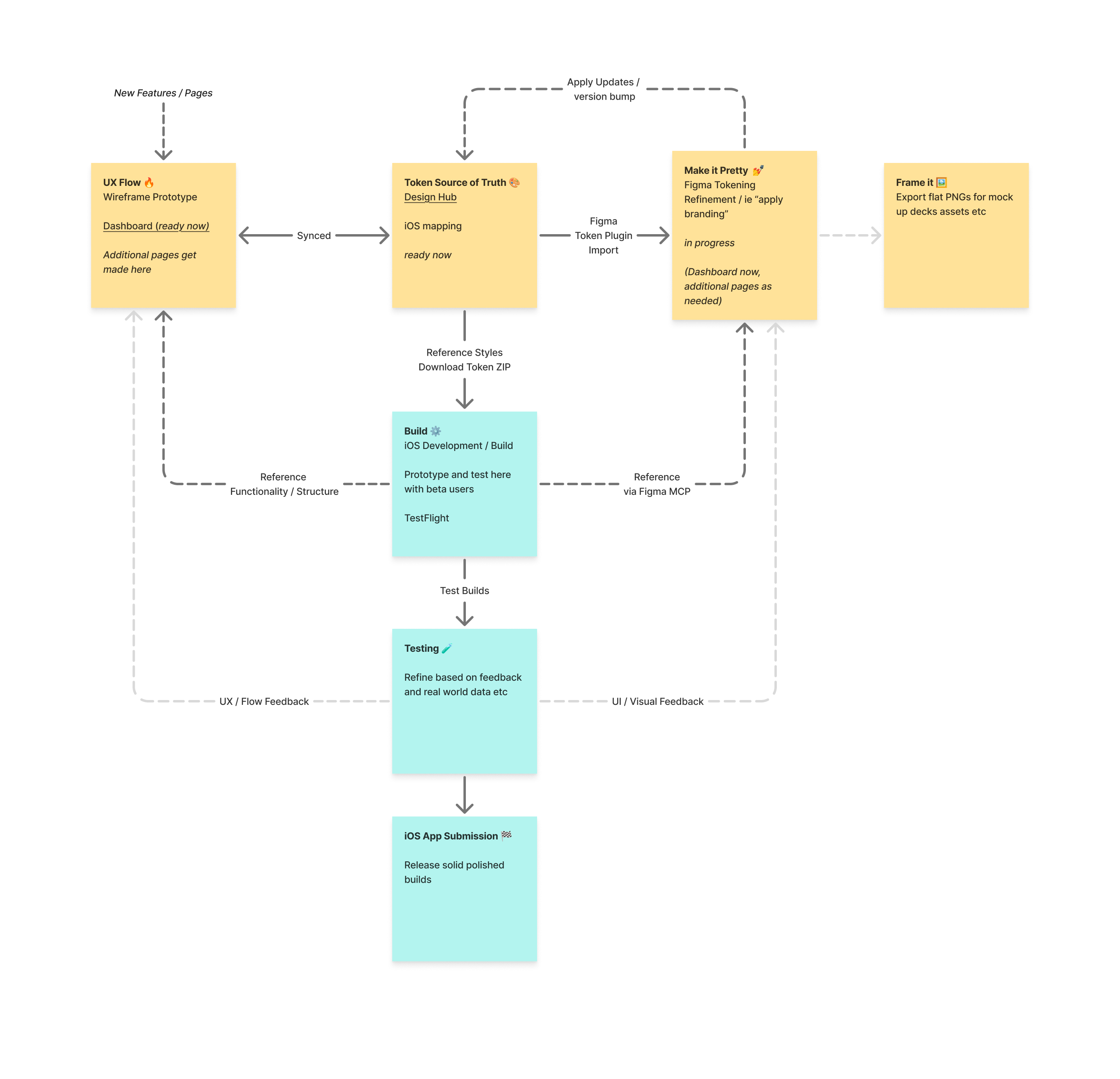
- 1Design in the browserDashboard prototype built with semantic tokens throughout. All screen states wired up and interactive. Hub compliance checker confirms every color and radius is token-bound.
- 2Hub confirms stylesTypography (18 roles → iOS HIG), color tokens (with UIColor equivalents), radius, spacing, and compliance audit all reflect live code — not a static spec. Layout and component structure are defined. The hub and the prototype stay synced — changes to either flow back to the other.
Build now. The values will catch up.
Component hierarchy, navigation flow, and token names are all stable at v0. Wire up Color(.semanticSuccess), .cornerRadius(16), .font(.headline) now — these won't change. Exact hex values, typeface choices, and fine spacing will be refined through Figma and absorbed automatically when you re-download the iOS package.
iOS development and Figma run simultaneously. Neither waits for the other. As Figma values are refined they flow back into the hub; as new screens are built they enter the same loop.
- 3Build component structureSwiftUI views, navigation, screen states — mirroring the web prototype component names (FleetView, VehicleCardContent, TripsFeed, etc.). Use this hub as the reference.
- 4Wire token-mapped stylesApply Color, Font, and cornerRadius using the hub mappings. Once Figma screens are token-linked, use Figma MCP to inspect any layer directly — it returns exact token names and resolved values as a live reference alongside the hub.
- 5Run 5-prompt capture workflowBuild → Audit → Tokens → Bind → Components. Agent-driven end-to-end via generate_figma_design and use_figma. Full prompts in the Capture Prompts section.
- 6Refine → sync back → version bumpDesigner refines color values, radius, or spacing in Figma. A Figma MCP agent reads the updated values and writes them back to lib/design-system/tokens/. Hub updates, iOS package reflects them, version increments.
- ↗Frame itExport token-linked screens as flat PNGs for stakeholder decks, mockups, and marketing assets. A free by-product of the variable-linked Figma file — no extra work once screens are tokenized.
Every new feature or page enters at the same point: UX Flow. A new screen gets prototyped there first, which keeps the hub (Token Source of Truth) and the prototype synced. From there the same pipeline applies — tokenize, capture, refine, version bump. The token system, Swift package, and Figma tooling are all reusable — only scope grows.
TestFlight feedback splits two ways: UX/flow issues return to the prototype; visual issues return to Figma. Either path feeds back into the next version batch through the same pipeline.
Adopting a new screen — 3 steps
- ATokenize the web screenReplace raw Tailwind color and radius classes with semantic token equivalents. Run the compliance checker to confirm zero non-token utilities remain.
- BRun the 5-prompt capture workflowSet <dashboard-url> to the new screen's URL in the Capture Prompts section and run prompts 1–5. The same workflow applies to every screen — no setup changes needed.
- CUpdate screen inventoryMark the screen as tokenized and Figma-captured below. The hub, iOS package, and Figma are immediately up to date — the loop continues.
Figma capture prompts
save URLs below · then copyFive sequential prompts — run in order for each screen. Structure first, then audit, variables, tokenize, and componentize. Each step builds on the last.
Saved to browser localStorage — persists across page reloads.
Agent reads the /figma-use skill, creates a new Figma file, and uses generate_figma_design to translate the live page into layers. Structure, hierarchy, auto layout, and semantic layer naming only — hardcoded values throughout.
Read the /figma-use skill. Create a new Figma file. Use the generate_figma_design
tool to translate the live page into Figma layers:
<dashboard-url>

Focus on structure only — layout, hierarchy, naming, and auto layout throughout.
Layer names must mirror the source code exactly, no Figma defaults like "Frame 12"
or "Group 3". Hardcoded values are fine for now.

We'll bind tokens and extract components in later steps.
Agent inspects the live page code and the design hub, then outputs a structured brief: all design tokens (colors, spacing, type, radii), a component inventory, and layout structure. This brief drives Step 3.
Inspect the live page code at:
<dashboard-url>

And the design hub:
<hub-url>

Output a brief covering: all design tokens (colors, spacing, type, radii), a
component inventory, and layout structure.

This brief will be used directly in the next step to set up variables and styles
in the created file.
Agent reads /figma-use and uses the Phase 2 brief to set up all Figma variables and styles via use_figma — colors (primitives first, then semantic aliases), type styles, spacing, and radii. Token names match source exactly.
Read the /figma-use skill. Using the Phase 2 brief, set up all variables and styles
via the use_figma tool in the created file — colors (primitives then aliases), type
styles, spacing, and radii. Match source token names exactly.

We'll tokenize the frame next, but not yet. Confirm what was created and flag
anything that didn't map cleanly.
Agent reads /figma-use and re-inspects the live page, then binds every layer to the correct variable from Step 3 — no raw values anywhere. Takes a screenshot and does a self-healing pass to correct visual drift. Done when zero raw values remain and the frame matches the live page.
Read the /figma-use skill. Re-inspect the live page code at:
<dashboard-url>

Using the use_figma tool, go through every layer in the Figma frame and bind it to
the correct variable from Phase 3. No raw values anywhere — every color, spacing,
type, and radii value must reference a token.

For each binding, confirm it's correct against the source — not just visually
plausible. Flag anything that couldn't be bound cleanly and explain why.

After all values are bound, take a screenshot of the frame and do a self-healing
pass — compare against the live page and correct any remaining visual drift before
moving to Step 5.

We're done when there are zero raw values left and the frame matches the live page.
Agent reads /figma-use and extracts all repeating patterns into proper Figma components with variants. All components use existing variables — no new raw values. Main frame references components, not raw layers.
Read the /figma-use skill. Using the use_figma tool, extract all repeating patterns
from the tokenized frame into proper Figma components.

Each component should have correct variants where the source has states or
variations. All components must use existing variables — no new raw values. Layer
naming inside components must continue to mirror the source code.

Confirm when all repeating elements have been extracted and the main frame
references components rather than raw layers.
Apply updates
Figma → tokens → version bumpAfter the designer refines values in Figma, this prompt reads the updated variable values and writes them back to the token source files, then increments the version. Runs a drift report first — nothing is written until the changes are confirmed.
Saved to localStorage — shared with the Capture Prompts section.
Read the /figma-use skill. Inspect the Figma file at:
<figma-url>

Compare the current Figma variable values against the token source files:
  lib/design-system/tokens/primitives.json
  lib/design-system/tokens/semantic-light.json
  lib/design-system/tokens/semantic-dark.json
  lib/design-system/tokens/sizing.json

Step 1 — Drift report
List every token where the Figma value differs from the source file. For each:
- Token name
- Current source value
- Refined Figma value

Do not write anything yet. Confirm the list looks intentional before proceeding.

Step 2 — Write back
Update the matching token JSON files with the confirmed values. Match token names
exactly — do not rename, restructure, or add new tokens.

Step 3 — Version bump
Update versions.json:
- Increment the version number
- Add a changelog entry listing what changed and why
- Mark any token renames as breaking changes if applicable

Summarize: what changed, which files were updated, and the new version number.
Figma MCP
use_figma · write-capable · no plugin neededAs of March 24, 2026, Figma's MCP server gained write capability via the use_figma tool. AI agents (Claude Code, Cursor, Codex, etc.) can now create and modify Figma files directly — variables, components, auto-layout, text styles — without any plugin install. This replaces the custom hub plugin entirely.
“Read lib/design-system/tokens/primitives.json, semantic-light.json, semantic-dark.json, and sizing.json. Using use_figma, write all tokens to the Figma file as Variables — primitives collection (Base mode), semantic collection (Light + Dark modes with aliases to primitives), and sizing collection (Base mode). Also write all 18 type styles from /hub/typography as Miles/* text styles. The Figma file is [FIGMA_URL].”
Run this any time tokens change. It's idempotent — existing variables update in place, missing ones are created.
primitives ✦Base — full color palette: neutral scale, green/blue/yellow/red status stops, brand greens, black, whitesemantic ✦Light · Dark — all surface, text, stroke, and status colors; each aliased to its matching primitive for automatic mode-switchingsizing ✦Base — spacing scale, borderRadius/control·panel·card·pill, boxShadow/card (STRING — apply manually: Y 24, blur 70, black 8%)Miles/* text styles ✦18 iOS-specific styles — apply to text layers via the style panel, not as variablesSkills are markdown instruction files that guide how agents use use_figma — which steps to take, what conventions to follow, what good output looks like. The figma-use skill is the foundation all others build on. Miles-specific conventions (token naming, component hierarchy, iOS handoff intent) can be encoded as a skill to make agent output consistently brand-aligned without re-explaining context each time.
GET /tokens— combined token JSON (all sets)GET /typography— text style bootstrap dataGET /manifest— hub indexGET /component-specs— component → token contract
Color · Primitives
Color · Semantic (light mode)
Spacing
Border radius · Shadow
Typography scale — iOS handoff
18 roles · each maps to one iOS HIG Dynamic Type style or named custom role. Inter (web) ↔ SF Pro (iOS).
text-3xl font-bold leading-tighttext-2xl font-semibold uppercase leading-tighttext-lg font-semibold leading-snugtext-base font-semiboldtext-sm font-semibold leading-nonetext-sm font-mediumtext-sm leading-relaxedtext-4xl font-bold leading-none tabular-numstext-lg font-bold leading-none tabular-numstext-xs font-semiboldtext-xs font-mediumtext-xstext-[11px] font-semibold uppercase tracking-widetext-[11px] font-mediumtext-[10px] font-semibold uppercase tracking-widetext-[10px] font-medium uppercase tracking-widefont-mono text-sm leading-relaxedfont-mono text-[11px] font-medium uppercase tracking-wideDashboard parity (tokenized dashboard)
Current classes used on the dashboard. Keep these aligned with Figma variables and token JSON.
Spacing (dashboard)
- px-5, py-4, gap-4 → 20px
- px-4, gap-3, p-4 → 16px
- px-3, py-3, gap-2, p-3 → 12px
- px-2.5, py-2.5, gap-1.5 → 10px
- gap-1, py-1.5, pt-2 → 4–6px
- gap-0.5, py-0.5 → 2px
Radius (dashboard)
- rounded-card → 16px (map + primary cards)
- rounded-panel → 12px (panels, bento, strips)
- rounded-control → 8px (buttons, controls, thumbnails)
- rounded-full → 9999px (badges, avatars)
Colors (dashboard)
- bg-background / bg-surface-card / bg-surface-subtle (base surfaces)
- text-text-primary / text-text-secondary / text-text-muted (typography)
- border-stroke-muted / divide-stroke-muted / bg-stroke-strong (strokes)
- text-semantic-success / warning / danger / info (status + intent)
- bg-semantic-success / warning / info (dots, status markers, filled status pills)
- bg-semantic-info + bg-semantic-success (filled PARKED / DRIVING pill backgrounds)
- bg-foreground + text-background (inverse dark cards, overlays, Emma driver avatar)
Note: stroke-muted and surface-strong resolve to the same value in both modes (neutral-200 light / neutral-800 dark). The names are kept separate for semantic clarity — strokes vs hover surfaces — but share values by design.
Tab bar / Bottom nav (system colors — intentional)
_components/bottom-nav.tsx uses raw Tailwind system colors, not semantic tokens. This is intentional — these map directly to iOS UITabBar system tints.
- bg-white/95 backdrop-blur-xl → UITabBar background (frosted glass)
- border-neutral-200/80 → UITabBar top separator
- text-blue-600 → active tab icon + label tint (iOS system blue)
- text-neutral-400 → inactive tab icon + label
- bg-blue-600 ring-2 ring-white → Miles tab notification badge dot
- focus-visible:ring-blue-500 → keyboard focus ring
iOS mapping: active tint → UIColor.systemBlue · inactive → UIColor.systemGray2 · bar background → .systemBackground with UIBlurEffect(.systemMaterial)
Token compliance checklist
- • Uses token classes for surface/text/stroke/semantic intent
- • Uses only sanctioned radius utilities: `rounded-card`, `rounded-panel`, `rounded-control`, `rounded-full`
- • Allows black gradient/overlay exceptions for map readability
- • Source audited:
dashboard/page.tsx - • Non-token color utility count: 14
- • Non-token radius utility count: 0
Needs conversion
bg-amber-50bg-neutral-100border-2text-amber-600text-blue-600text-blue-700text-ellipsistext-emerald-600text-neutral-300text-neutral-400text-neutral-500text-neutral-700text-neutral-900text-surface-card- • Source audited:
_components/bottom-nav.tsx - • Intentional system colors:
blue-600(active tint),neutral-400(inactive),white/95(bar bg) - • Unexpected non-token utilities: 2
Unexpected — review
ring-backgroundring-offset-backgroundComponent inventory
Components used on the dashboard (1:1 with dashboard/page.tsx)
- FleetViewDashboard header, map, vehicle list
- VehicleCardContentSingle vehicle card (header, bento, live strip)
- TripsFeedTrips page — unified wireframe feed (live trip · trip rows · score updates · events) grouped by day
- AgentCoachingCardFrom Miles message + CTA
- AgentCoachingCarouselHorizontal coaching cards + dot indicators
- TodoPreviewDemo todos list
- QuickActionsRoadside Assist button (when profile header)
- LiveSpeedTrip speed + max (trip mode)
- TripVehicleStatusVehicle health bento (trip mode)
- TripDriverCardDriver avatar + name + score
- TripInProgressDriving header, map, LiveSpeed, vehicle, driver
- TripCompleteTrip summary card + coaching + back
- MapViewMap with markers/route — supports labelColor to override pill color independently from marker dot
- LinkInternal navigation
- BottomNavTab bar (layout)
Screen inventory
1 of 37 tokenizedAll screens in the prototype. Each screen moves through the same adoption pipeline — tokenize → Figma capture → variable linking → refine. The token system, hub, and tooling are shared across all screens; only the scope grows over time.